
Codex Desktop
Codex Desktop adds MCP servers from its settings, and shares ~/.codex/config.toml with the
command line.
Before you start
You need a Reduck account, and a paired browser if you want scripts to run on your own Chrome. Both are in the quick start.
Install the Codex version Reduck is tested against:
npm i -g @openai/[email protected]
Pin that version. Later releases have broken the connection to Reduck.
Add the server
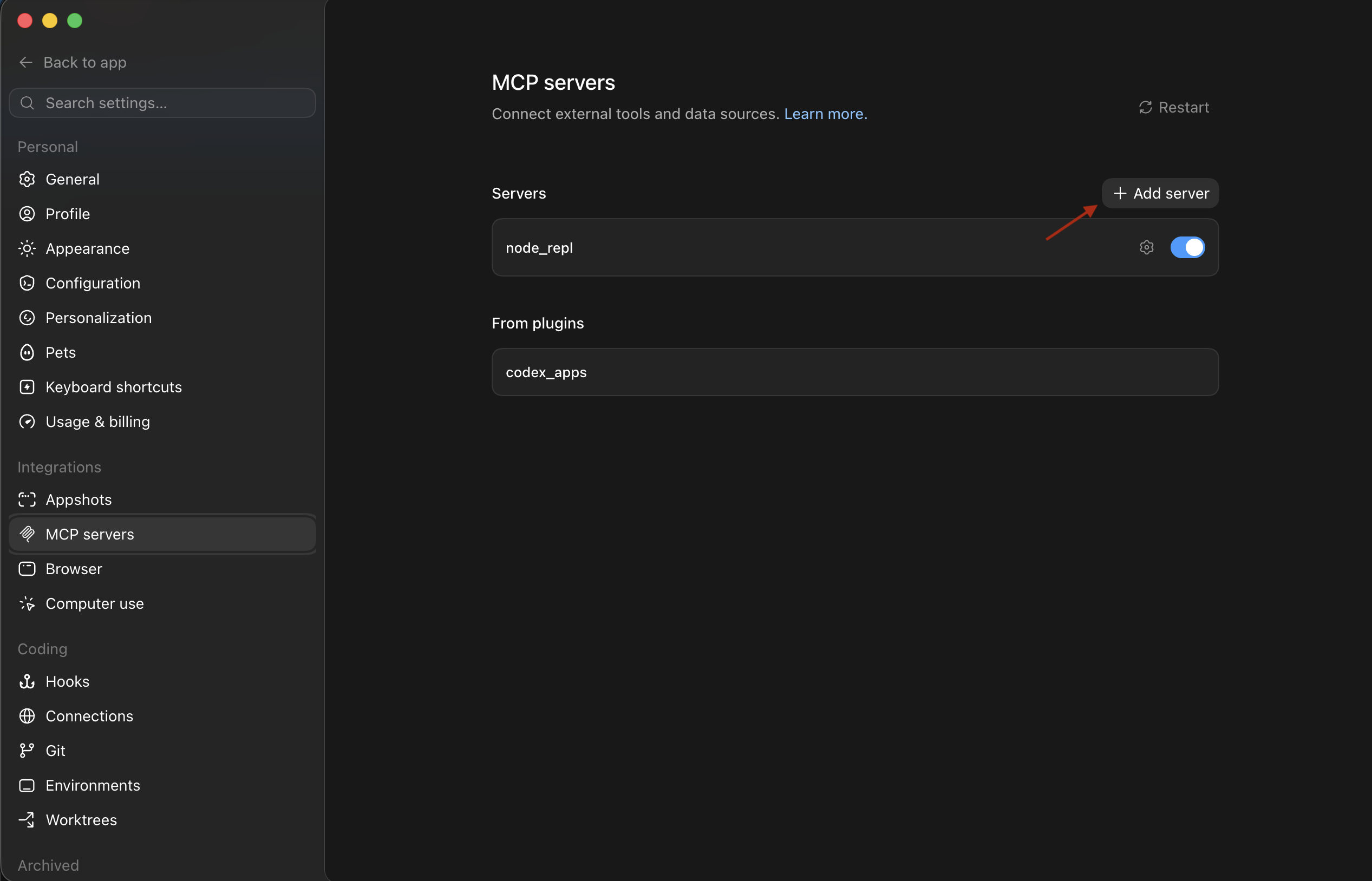
Open Settings → MCP servers and click + Add server.
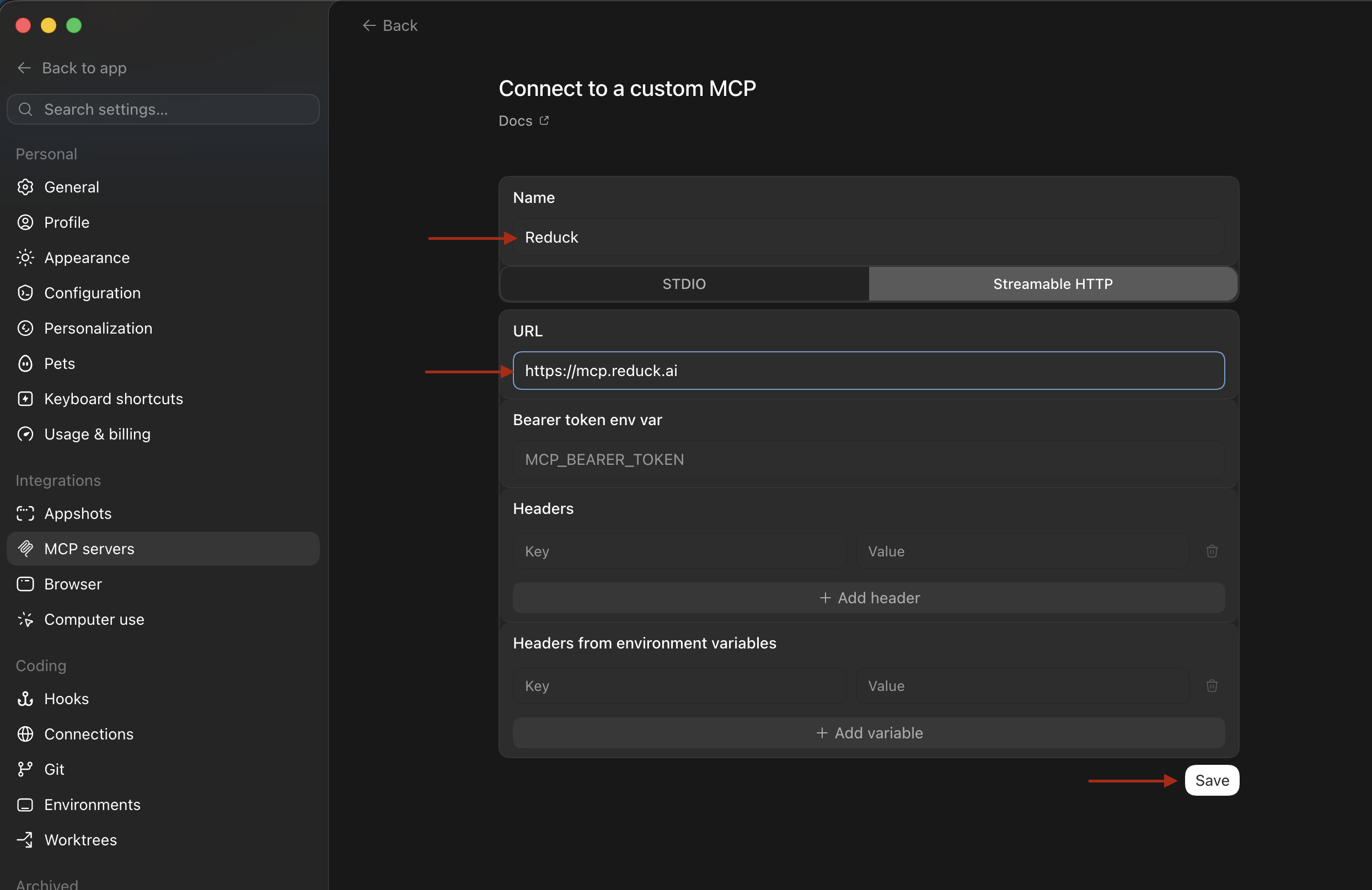
Select Streamable HTTP, set the name to Reduck and the URL to https://mcp.reduck.ai, then
save.
Restart Codex.
Confirm it is connected
Run /mcp in a session. Reduck is listed, and the first call opens a browser to sign in to your
Reduck account.
Settings worth changing
Codex asks for approval before each tool call, which interrupts a script mid-run. To let Reduck
run unattended, set the approval mode for the server in ~/.codex/config.toml:
[mcp_servers.reduck]
url = "https://mcp.reduck.ai"
default_tools_approval_mode = "auto"
This applies to Reduck alone; every other server keeps asking.
To lift approvals for one session instead, start Codex with codex --full-auto (sandbox
workspace-write, approval on-failure). That choice lasts only as long as the session.
If it does not appear
- The account is on the free tier. Codex Pro is required for MCP servers.
- The server was added as stdio rather than Streamable HTTP. A stdio server expects a command to launch, and Reduck is a URL.
- Codex was not restarted after the server was added.
Try it
Ask for something on a real site, and let the agent pick the script:
Reduck finds a script for the site, runs it, and hands back the result. The script catalogue lists everything it can already do.